
Many shop owners use a bank app every day without knowing what happens inside it. POS software is similar. You scan a packet of biscuits, a price shows up, and a bill prints. It looks like magic, but there is a simple logic behind it, and once you understand it, you will choose and use your POS software much better.
In this article, we follow one bill from the first scan to the GST report, and then look at what happens in the background when the internet goes, when a cashier gives a discount, and when you open your phone at night to check sales.
The three parts inside POS software
Think of POS software as three layers working together.
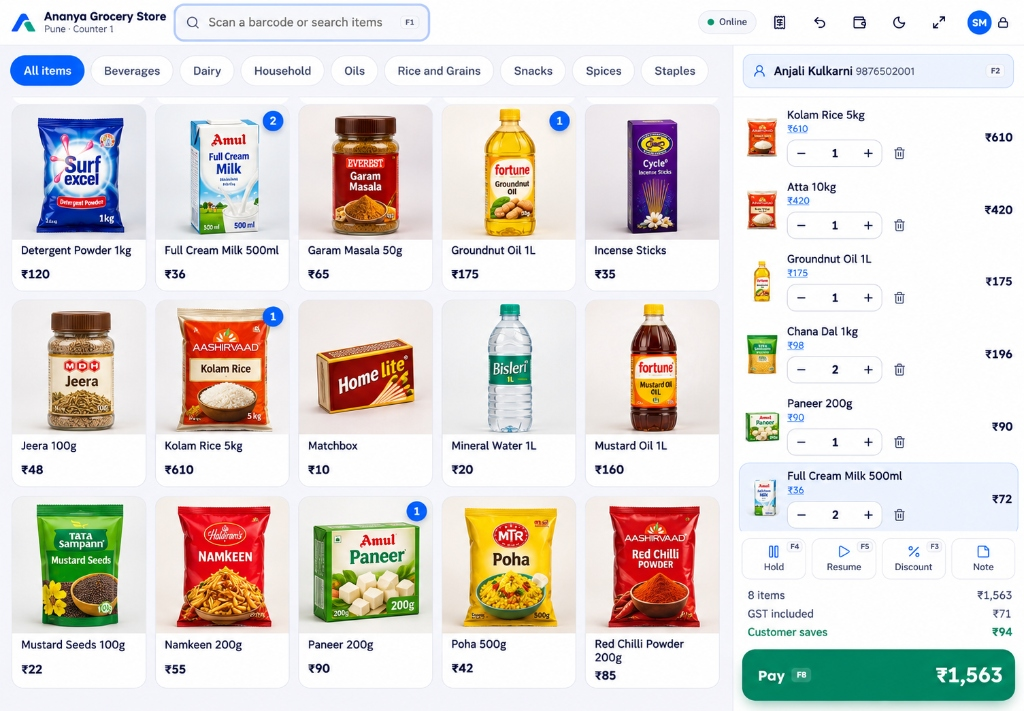
- The screen the cashier uses. This is the billing screen with item pictures, a search box and a running bill. It is built for speed, with big buttons and keyboard shortcuts.
- The item list (the catalogue). This is your shop's brain: every item with its name, barcode, price, GST rate, HSN code and current stock.
- The records. Every sale, return, payment, delivery and stock correction is saved here, with the time and the person's name. Reports are made from these records.
The cashier only touches the first layer. But the value of POS software comes from the other two. They are the reason you can ask "how many did we sell last Diwali?" and get an answer in a few seconds.
The journey of one bill
Step 1: Scan or search
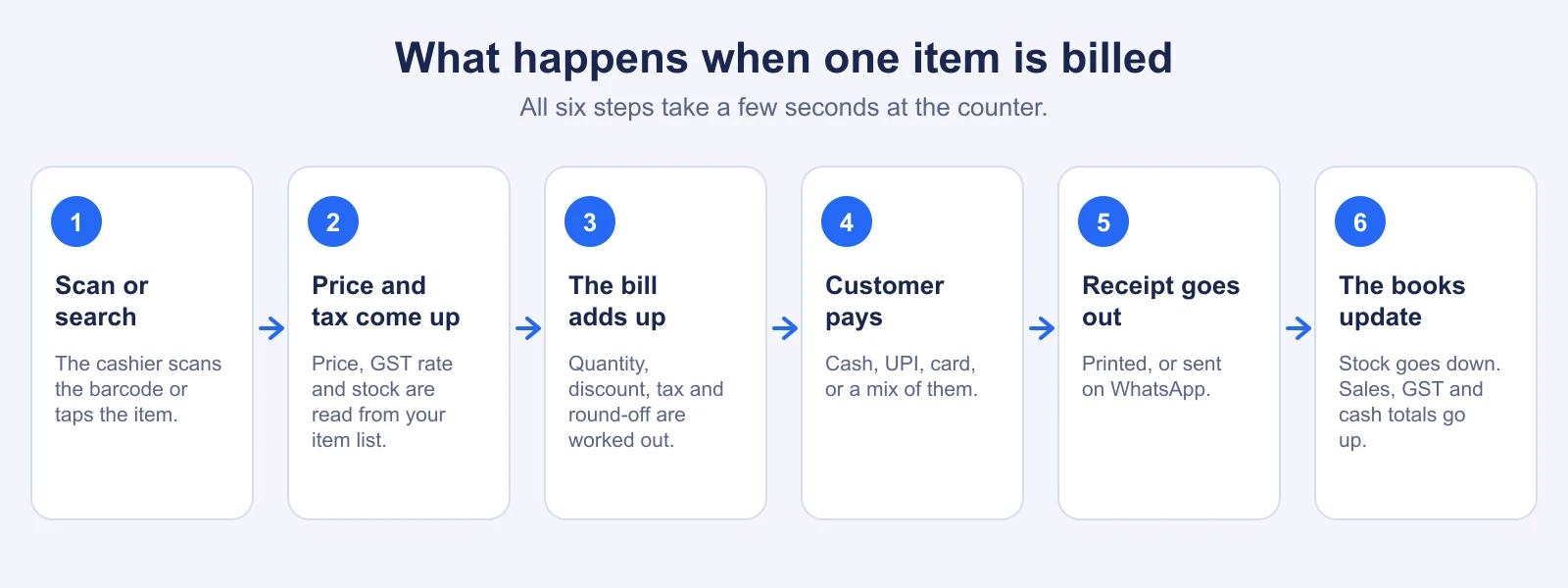
The cashier scans the barcode on the packet. A barcode is just a number, for example 8901234567890. The scanner types this number into the software, as if someone typed it on a keyboard. If the item has no barcode, such as loose sugar or a school notebook without a code, the cashier searches by name or taps its picture.
Step 2: The item is found
The software looks up that number in your item list. It finds the name, the selling price, the GST rate and the stock. If the item is not found, it asks you to add it, which takes a few seconds.
Step 3: The bill adds up
Each scan adds a line. If the same item is scanned again, the quantity goes up. For items sold by weight, such as dry fruits, the cashier enters the weight, and the price is calculated for that weight. The software adds the item discounts, any bill discount, the GST and the round-off, and shows the total.
Step 3A: A worked GST example
Let us see the tax part with simple numbers. Say two items are on the bill, and the prices already include GST.
| Item | Price paid (GST included) | GST rate | Price before tax | Tax |
|---|---|---|---|---|
| Packed rice, 5 kg | ₹210.00 | 5% | ₹200.00 | ₹10.00 |
| Hand wash, 750 ml | ₹118.00 | 18% | ₹100.00 | ₹18.00 |
| Total | ₹328.00 | ₹300.00 | ₹28.00 |
For a sale within the same state, the ₹28 of tax is split equally: ₹14 as CGST and ₹14 as SGST. For a sale to a customer in another state, it would be shown as IGST. The software shows this split on the bill, and it adds it to your tax report, so your accountant does not have to calculate it again.
Step 4: The customer pays
The cashier chooses how the customer pays. It can be cash, UPI, a card, or a mix: say ₹200 by UPI and the rest in cash. For cash, the software shows the change to return. For UPI, many systems show a QR code for the exact amount. The bill is complete only when the paid amount equals the total.
Step 5: The receipt goes out
A small thermal printer prints the bill. Or the cashier sends it on WhatsApp, so the customer has a copy on the phone. When the payment is cash, the cash drawer can open on its own.
Step 6: The books update
This is the invisible part. The stock of rice and hand wash goes down. Today's sales total goes up. The cash and UPI totals change. The GST amounts are added to your tax figures. And the bill is locked, so no one can quietly change it later. If a customer returns something, a separate return is made, and the original bill stays as it was.
What happens when the internet goes?
Here is a situation that is common in many towns. During the monsoon in Kochi, the power flickers and the broadband drops for twenty minutes at six in the evening, just when the shop is busiest. If the software needs the internet for every bill, the counter stops, and customers leave.
Good POS software is built for this. It keeps a copy of your items, prices, customers and staff logins on the counter computer. When the internet drops, billing continues. Each bill gets its own number from a series for that counter, so it cannot clash with any other bill. When the connection returns, the bills are sent to the server in the same order, one time only. You do not enter anything twice. This is called offline billing, and it is one of the first things to check. You can read how ours works on the offline billing section of our home page.
What happens when a cashier gives a discount?
You can decide how much discount each person can give. For example, a cashier can give up to 5%. If a customer asks for 12%, the software asks for a manager's PIN. Only after the manager enters it does the discount apply, and the log records that the manager approved it. This is a simple control, and it stops the "just this once" habit that quietly eats into your margin.
What happens at the end of the day?
When the cashier closes the shift, they count the cash in the drawer and enter the amount. The software compares it with what it expected: opening cash plus cash sales, minus cash returns, plus or minus any cash in and out. The difference, if any, is shown clearly. A small difference of a few rupees happens in every shop. A big or repeated difference tells you to look closer.
The owner can then look at reports: sales by hour, by item, by cashier, by payment type. Seeing that most of your sales happen between 6 and 9 in the evening helps you plan staff timings.
Where is the data stored?
In older installed POS software, the data sits on one computer. If that computer is stolen, burned or crashes, the data goes with it unless someone took a backup. In cloud POS software, the data is kept on secure servers, kept apart for each shop. A working copy stays on your counter device, so you can continue to bill. We compare both approaches in Cloud-Based POS vs Traditional POS Software.
Does it work for every kind of shop?
The same basic flow works for most shops, with small differences. A grocery store needs weighing-scale labels and fast scanning. A pharmacy needs batch numbers and expiry dates. A clothing store needs sizes and colours. A wholesale shop needs big quantities and A4 invoices. Before you choose a product, check that it handles the thing that makes your shop different. If you are comparing options, our checklist in How to Choose the Best POS Software for Your Retail Store will help.
What you need to start
- A computer, laptop, tablet or phone with a browser
- Your item list with prices and GST rates, from an Excel sheet if you have one
- A barcode scanner and a receipt printer, if you want faster billing (optional at the start)
- An hour or two to add your items, and one slow afternoon to train the counter staff
You can try it without paying anything. Our plans start at ₹499 a month, and every account gets a 14-day free trial, with no card.
The bottom line
POS software is not complicated inside. It is a clever item list, a fast billing screen and a careful record book that updates itself. Once you see that, the fear goes away, and you can ask the right questions to any vendor: does it work offline, does it handle my GST, and can I see my sales from my phone?